Remote Record
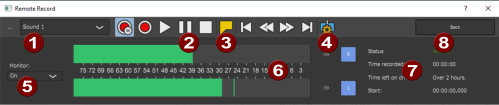
The Remote Record window reduces the program interface of Sound Forge Pro to the control elements that are necessary to perform recordings.
When you open this window with the  button on the Transport toolbar, the main window of Sound Forge Pro is hidden at the same time. This frees up the screen to display text or sheet music, for example.
|
1 |
File: In the list box, you can select the file for recording among the open files. If no file is open, a new file is created by clicking on Prepare recording or Recording. |
|
2 |
Transport controls: Buttons to control recording and playback, »For more information, see The Transport Toolbar |
|
3 |
Set markers: This button allows you to set markers, even while recording. |
|
4 |
Go to...: This button opens the dialog Go to... to quickly reach a position in the file. |
|
5 |
Monitoring: This sets the monitoring mode. »For more information, see Set up input monitoring |
|
6 |
Peak meter: The peak meter for checking the recording level. |
|
7 |
Status information: The recording status information is displayed here. This is the same information as displayed in the Recording Options window. |
|
8 |
Back: Click on Back to display the main window again. The remote recording window remains open. The button label changes to Remote. With a click on it you can hide the main window again. |
Last modified on June 09, 2026
Was this page helpful?
What did you particularly like about this page?
What did you dislike about this page?
Thank you for your feedback.